
Configure checkout
Order summary and coupons
Use native WooCommerce totals and add optional coupon, free-shipping, gift and policy details.
Where to go WooCommerce → Trim Checkout → Conversion
Set up a campaign coupon
- Create a valid WooCommerce coupon
Set the discount, restrictions and expiry in WooCommerce. Trim uses those native coupon rules. - Enable Auto-apply URL coupon
In Conversion, enable Apply a coupon passed in the checkout URL automatically and save. - Build and test the link
Add ?coupon=YOURCODE to your checkout URL. coupon_code and discount are also supported. Test with an eligible cart; invalid codes are ignored. - Show savings if useful
Enable Savings line to show coupon discounts as “Total savings” in the order summary.
ExampleIf your store already has an active SAVE10 coupon, a checkout link ending in ?coupon=SAVE10 can apply it. The example code does not create a coupon or bypass its restrictions.
Other summary options
- Free-shipping bar
- Uses the shopper’s matched WooCommerce shipping zone and minimum-amount rule, including discounts. Configure the threshold in WooCommerce shipping zones.
- When the bar is hidden
- Coupon-dependent free-shipping rules and multiple shipping packages do not show the progress bar.
- Gift options
- Shows for orders that need shipping. The gift flag and message are saved to the order and included in the admin screen and order emails.
- Trust badges
- Optional reassurance row. Separate messages with a pipe character (|) and use only promises your store can support.
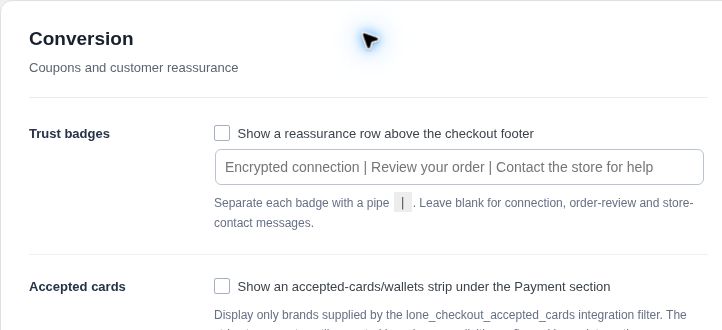
Connect policy pages
In Policies and data, choose published pages for your refund, shipping, privacy, terms and contact links. In Conversion, enable Terms & conditions if acceptance is required. WooCommerce’s configured Terms & Conditions page is used when available.
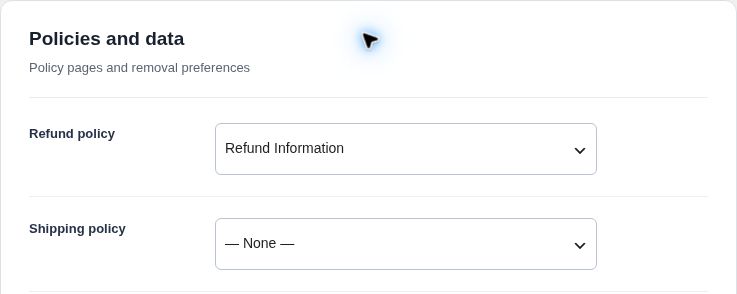
Check before you finish
- Coupon eligibility and the order total match native WooCommerce rules.
- Your free-shipping bar uses the expected shipping zone.
- Every displayed policy link opens the intended public page.