
Start here
Activate or move a license
Connect this WordPress installation to its license and manage the activation when you move sites.
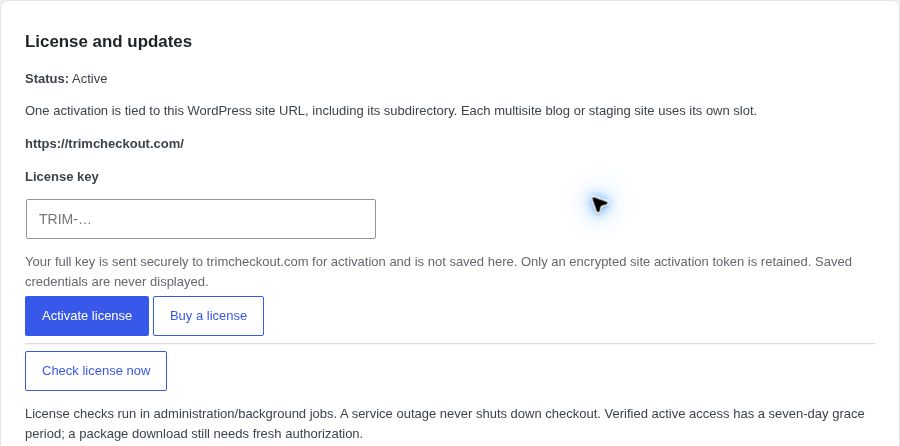
Where to go WordPress → Trim Checkout → License
Find your purchased license
Sign in to My account using the account used for your purchase to view your license information. New Paddle customers should use the email entered at checkout. Existing customers should use their existing account. Use password reset if you need to set or reset your password. You can also retrieve the plugin ZIP from Licenses & downloads. If payment completed but your license is missing, contact support; do not purchase again to recover it.
Activate this site
- Open the secure license page
Use your HTTPS WordPress administration URL, then open Trim Checkout → License. - Enter your license
Paste your key into License key and select Activate license. Keep keys private; never put them in screenshots or support emails. - Check the result
Confirm that Status is Active, then select Open checkout settings. Check license now refreshes an existing activation.
Plugin activation and license activation are separateActivating the WordPress plugin loads its code. Activating the license unlocks first-time configuration and eligible update access.
Move to a different site
- Release the old installation
On the old site, find Release this site, check Release this site’s license activation and select Release activation. - Activate the destination
Move the site, then activate the license from the destination URL. Staging sites and multisite subsites each use a separate activation slot. - If the old site is unavailable
Contact support@trimcheckout.com with the affected site URL and the problem. Do not email a full license key.
Checkout keeps workingA license-service outage does not switch off customer checkout. Releasing, expiring or losing update access does not disable a previously configured checkout. Deactivating or deleting the plugin does not release the remote activation.